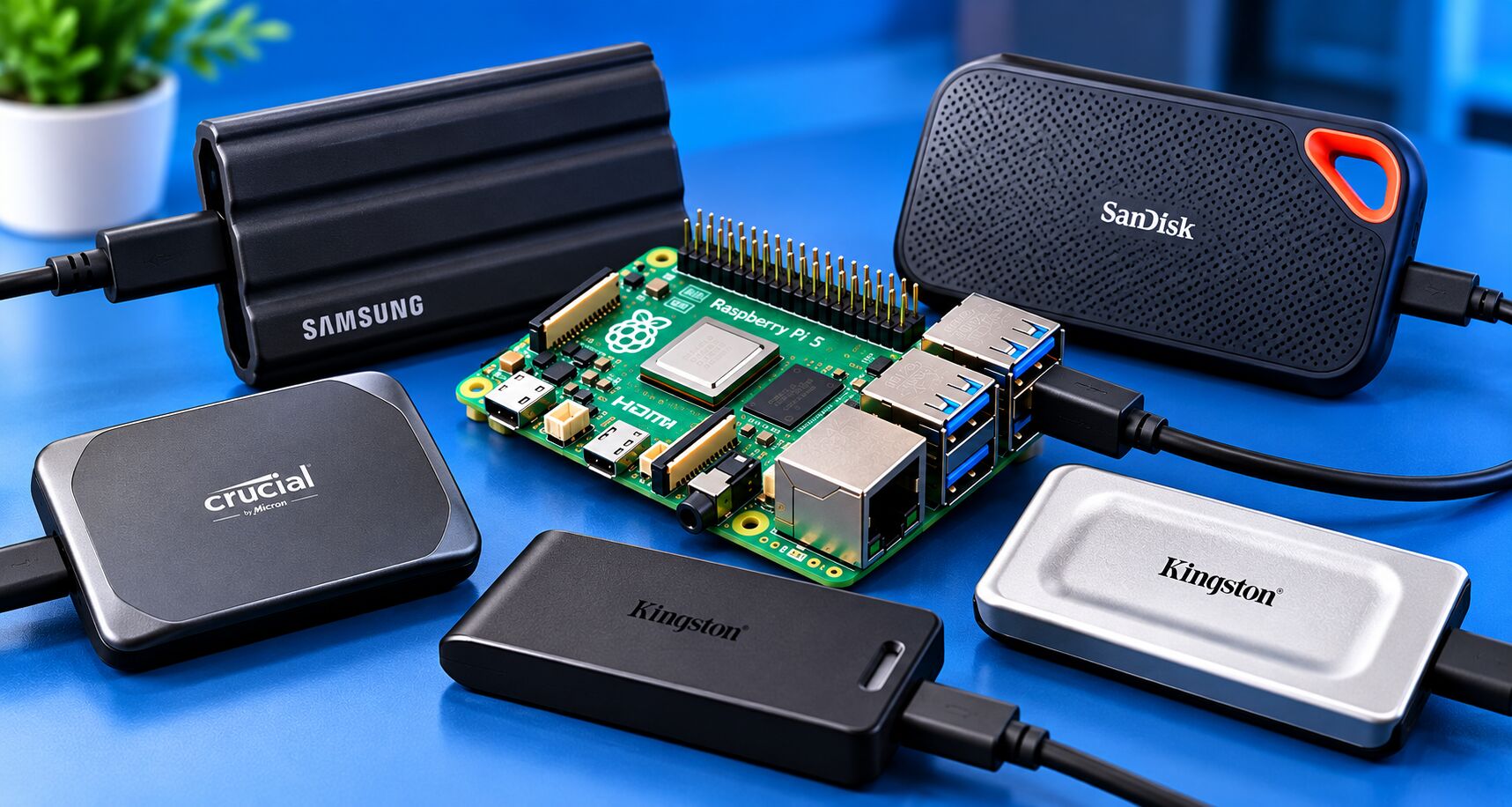
A USB SSD is one of the easiest ways to add fast external storage to a Raspberry Pi or other single board computer. Compared with a microSD card, an SSD can provide better responsiveness, higher sustained performance, more storage capacity, and a better option for applications such as Docker, home servers, media libraries, backups, and operating-system storage.
For Raspberry Pi users, however, buying the fastest SSD available is not necessarily the best approach. The Raspberry Pi 5 has two USB 3.0 ports capable of up to 5Gbps, so a 20Gbps USB SSD cannot use its full interface speed when connected directly to the Pi.
In this guide, we’ll look at the best portable USB SSDs for Raspberry Pi and other SBC projects, what specifications matter, and which type of drive makes sense for different workloads.
Quick Comparison
| USB SSD | Interface | Advertised Read | Capacity Options | Best For |
|---|---|---|---|---|
| Samsung T7 Shield | USB 3.2 Gen 2 | Up to 1,050 MB/s | 1TB–4TB | Rugged Raspberry Pi storage |
| SanDisk Extreme Portable SSD | USB 3.2 Gen 2 | Up to 1,050 MB/s | 500GB–8TB | Portable projects |
| Crucial X9 Pro | USB 3.2 Gen 2 | Up to 1,050 MB/s | 1TB–4TB | General-purpose storage |
| Kingston XS1000 | USB 3.2 Gen 2 | Up to 1,050 MB/s | 1TB–2TB | Compact setups |
| Kingston XS2000 | USB 3.2 Gen 2×2 | Up to 2,000 MB/s | 500GB–4TB | PCs and high-speed USB hosts |
The advertised speeds above are manufacturer specifications. Actual Raspberry Pi performance will be lower because the Pi’s USB interface is the limiting factor.
Why Use a USB SSD With a Raspberry Pi?
The Raspberry Pi has traditionally used a microSD card as its primary storage device. While microSD cards work well for many projects, an external SSD can be useful when you need more storage or want a more responsive storage system.
A USB SSD is particularly useful for:
- Raspberry Pi home servers
- Docker containers
- Nextcloud
- Jellyfin media libraries
- Plex media libraries
- NAS projects
- Backups
- File servers
- Development environments
- Virtualization-related workloads
- Large datasets
- Raspberry Pi desktop installations
The Raspberry Pi 4 has two USB 3.0 ports, while the Raspberry Pi 5 also provides two USB 3.0 ports and two USB 2.0 ports.
For storage, you should connect the SSD to a USB 3.x port, not a USB 2.0 port.
1. Samsung T7 Shield
The Samsung T7 Shield is a rugged portable SSD designed for users who want fast external storage without a fragile enclosure.
Samsung specifies USB 3.2 Gen 2 connectivity with sequential read speeds of up to 1,050 MB/s and write speeds of up to 1,000 MB/s. The drive also has an IP65 rating and protection against drops of up to 3 meters.
Key specifications
- USB 3.2 Gen 2
- Up to 1,050 MB/s read
- Up to 1,000 MB/s write
- 1TB, 2TB and 4TB capacities
- IP65-rated protection
- AES 256-bit hardware encryption
- USB-C connection
- USB-C to USB-C and USB-C to USB-A connectivity options
The rugged construction makes the T7 Shield particularly interesting for portable Raspberry Pi projects where the SSD may be moved frequently.
For a Raspberry Pi home server sitting permanently on a desk, however, its rugged enclosure isn’t necessarily essential.
2. SanDisk Extreme Portable SSD
The SanDisk Extreme Portable SSD combines high-speed USB storage with a compact, rugged enclosure.
SanDisk specifies sequential read speeds of up to 1,050 MB/s and write speeds of up to 1,000 MB/s. It uses USB 3.2 Gen 2 and is available in capacities ranging from 500GB to 8TB depending on the configuration.
Key specifications
- USB 3.2 Gen 2
- Up to 1,050 MB/s read
- Up to 1,000 MB/s write
- 500GB through 8TB options
- IP65 water and dust resistance
- Up to 3-meter drop protection
- USB-C
- 5-year limited warranty
- 256-bit AES hardware encryption
Its integrated carabiner loop can also be useful when using a Raspberry Pi and SSD as a portable computer or field system.
For Raspberry Pi users, the most important advantage is that the SSD already has a USB-C interface and doesn’t require building a separate NVMe enclosure.
3. Crucial X9 Pro
The Crucial X9 Pro is a compact portable SSD aimed at general-purpose storage and content workloads.
Crucial lists USB 3.2 Gen 2 connectivity and sequential read performance of up to 1,050 MB/s. The drive is available in 1TB, 2TB and 4TB capacities.
Key specifications
- USB 3.2 Gen 2
- USB-C
- Up to 1,050 MB/s read
- 1TB, 2TB and 4TB
- Windows compatibility
- macOS compatibility
- Linux compatibility
- Android compatibility
- iPad compatibility
- Select camera compatibility
- PlayStation and Xbox compatibility
The X9 Pro makes sense when you want a compact SSD that can be moved between a Raspberry Pi, desktop computer and laptop.
Its 10Gbps USB interface is also a good match for the type of USB connectivity found on the Raspberry Pi, although the Pi itself remains limited to 5Gbps on its USB 3 ports.
4. Kingston XS1000
The Kingston XS1000 takes a different approach from rugged SSDs such as the T7 Shield.
It is extremely small and lightweight, making it useful when you want to keep a Raspberry Pi setup compact.
Kingston specifies sequential read speeds of up to 1,050 MB/s and write speeds of up to 1,000 MB/s using USB 3.2 Gen 2. The drive weighs approximately 28.7 grams.
Key specifications
- USB 3.2 Gen 2
- Up to 1,050 MB/s read
- Up to 1,000 MB/s write
- 1TB and 2TB
- 28.7g
- USB-C
- USB-A adapter included
- 5-year limited warranty
The small size is particularly attractive for:
- Raspberry Pi travel systems
- Portable servers
- Raspberry Pi development systems
- Small desktop setups
- Backup drives
If your priority is minimizing the size of your SBC setup, the XS1000 is considerably smaller than many rugged portable SSDs.
5. Kingston XS2000
The Kingston XS2000 is designed for substantially higher USB bandwidth than the XS1000.
Kingston specifies USB 3.2 Gen 2×2 and sequential speeds of up to 2,000 MB/s read and write. Capacities range from 500GB to 4TB.
Key specifications
- USB 3.2 Gen 2×2
- Up to 2,000 MB/s read
- Up to 2,000 MB/s write
- 500GB–4TB
- USB-C
- IP55 protection
- Compact design
However, there is an important consideration for Raspberry Pi users.
The Raspberry Pi 5’s USB 3 ports operate at up to 5Gbps, so connecting a 20Gbps USB 3.2 Gen 2×2 SSD directly to the Pi does not allow the drive to operate at its advertised 2,000 MB/s interface performance.
The XS2000 therefore makes more sense if you intend to use the same SSD with a desktop or laptop that supports USB 3.2 Gen 2×2.
Which USB SSD Should You Use With a Raspberry Pi?
The important thing to understand is that the fastest SSD on the market isn’t necessarily the fastest storage solution for a Raspberry Pi.
The Raspberry Pi 5 has two USB 3.0 ports supporting simultaneous 5Gbps operation.
That means a USB SSD with a 10Gbps interface is already more than sufficient from the perspective of the host connection.
For a Raspberry Pi, I would therefore concentrate on:
- SSD reliability
- Capacity
- USB compatibility
- Power requirements
- Thermal behavior
- Enclosure durability
- Price
- Warranty
Rather than paying a premium simply for a 20Gbps or 40Gbps interface.
USB SSD vs NVMe SSD on Raspberry Pi 5
The Raspberry Pi 5 also has another storage option: its PCIe interface.
Raspberry Pi 5 includes a single-lane PCIe 2.0 interface that can be used with an appropriate M.2 adapter or HAT.
This allows you to install an NVMe SSD directly through a compatible M.2 HAT.
That creates two different approaches.
USB SSD
Raspberry Pi 5
      │
      └── USB 3
            │
          SSD
Advantages:
- Simple
- Portable
- Easy to disconnect
- No HAT required
- Works with Raspberry Pi 4 and 5
- Easy to use with multiple computers
NVMe SSD
Raspberry Pi 5
      │
     PCIe
      │
   M.2 HAT
      │
    NVMe SSD
Advantages:
- Internal-style storage
- No USB cable
- Excellent performance potential
- Better integration for permanent servers
- Useful for demanding storage workloads
Raspberry Pi itself offers M.2 HATs for connecting NVMe storage to the Pi 5.
For more information, see our guide:
Best NVMe HATs for Raspberry Pi 5
Is a USB SSD Faster Than a microSD Card?
In many Raspberry Pi workloads, an SSD can provide a noticeably more responsive storage experience than a typical microSD card.
This is especially relevant when the Raspberry Pi is performing many small reads and writes.
For example:
- Booting an operating system
- Installing software
- Running Docker containers
- Managing databases
- Hosting Nextcloud
- Managing media libraries
- Compiling software
- Working with large files
However, performance varies considerably between microSD cards and SSDs, and sequential benchmark numbers don’t tell the entire story.
For a home server, SSD storage is particularly attractive because applications can generate a large amount of filesystem activity.
Best USB SSD Capacity for Raspberry Pi
500GB
A 500GB-class drive can be sufficient for:
- Raspberry Pi desktop
- Development
- Basic Docker
- Testing
- Small projects
However, 500GB is becoming less attractive when larger capacities are reasonably priced.
1TB
1TB is a very useful capacity for a Raspberry Pi home server.
It provides enough room for:
- Docker containers
- Application data
- Backups
- Development files
- Media
- Nextcloud
2TB
A 2TB SSD is useful when the Raspberry Pi is being used as a:
- Media server
- File server
- Backup server
- NAS
- Nextcloud server
4TB and larger
Large SSDs become useful when the Pi is managing substantial media collections or large datasets.
Keep in mind that an SSD should not be treated as the only copy of important data.
Can You Boot Raspberry Pi From a USB SSD?
Yes.
Raspberry Pi computers can use USB storage as an operating-system boot device, although the exact boot behavior and configuration depend on the Raspberry Pi model and firmware.
For a Raspberry Pi 4 or Raspberry Pi 5, using an SSD as the main system drive can be particularly useful for server applications.
A typical arrangement looks like:
Raspberry Pi 5
      │
    USB 3
      │
   USB SSD
      │
Raspberry Pi OS
      │
 ┌────┴────┐
 │ Docker  │
 │ Nextcloud
 │ Jellyfin
 │ Pi-hole
 └─────────┘
This can turn a Raspberry Pi into a compact home server with the operating system and application data stored on the SSD.
USB SSD Power Considerations
One issue that should not be overlooked is USB power.
Raspberry Pi documentation notes that USB devices can encounter problems when the available power is insufficient. On Raspberry Pi 5, the available USB peripheral current depends on the power supply being used. With a 5A supply, the documented USB power budget is higher than when using a 3A supply.
If you experience:
- SSD disconnects
- Filesystem errors
- Random reboots
- USB resets
- Drive disappearing under load
check the power supply before assuming that the SSD is defective.
For systems with multiple USB devices, a powered USB hub can also help. Raspberry Pi specifically recommends a powered hub as a way to rule out insufficient USB power.
USB 3 vs USB 2 for an SSD
Always connect your SSD to a USB 3 port when possible.
The Raspberry Pi 4 and Raspberry Pi 5 both provide two USB 3.0 ports and two USB 2.0 ports.
USB 2 is significantly slower and can become a major bottleneck.
For example:
USB 2.0
   ↓
SSD
   ↓
Major interface bottleneck
versus:
USB 3.0
   ↓
SSD
   ↓
Much higher available bandwidth
For a Raspberry Pi server, reserve the high-speed USB ports for storage whenever practical.
USB SSD File Systems for Raspberry Pi
The best filesystem depends on how you intend to use the SSD.
ext4
For a Linux-based Raspberry Pi server, ext4 is usually the straightforward choice.
It works well with:
- Raspberry Pi OS
- Docker
- Linux applications
- Home servers
- Databases
exFAT
exFAT is useful when you need to move the SSD between different operating systems.
For example:
Raspberry Pi
     ↓
Windows PC
     ↓
Mac
However, it isn’t necessarily the first choice for a Linux server.
NTFS
NTFS can be useful when the drive needs to be shared with Windows systems, but Linux server workloads may be better served by a native Linux filesystem.
How to Test USB SSD Speed on Raspberry Pi
You can perform basic sequential write testing with Linux tools.
For example:
sudo dd if=/dev/zero of=/path/to/testfile bs=1M count=1024 conv=fdatasyncThen remove the test file:
rm /path/to/testfileFor more useful storage testing, tools such as fio can measure:
- Sequential read
- Sequential write
- Random read
- Random write
- IOPS
- Latency
This is especially important for Raspberry Pi servers because sequential transfer speed alone doesn’t represent how well an SSD will perform with Docker containers or databases.
USB SSDs for Raspberry Pi Docker Servers
A USB SSD can be particularly useful when running multiple Docker containers.
For example:
Raspberry Pi 5
      │
    USB 3
      │
    SSD
      │
   Docker
      │
 ┌────┼───────────┐
 │    │           │
Pi-hole Jellyfin Nextcloud
 │    │           │
Volumes stored on SSD
This keeps frequently accessed Docker data away from the microSD card.
For a larger Docker environment, consider storing:
/var/lib/docker- Docker volumes
- Database files
- Application data
on SSD storage.
Before moving Docker’s data directory, however, make sure you understand the implications for existing containers and volumes and have a backup.
USB SSDs for Raspberry Pi Home Servers
An SSD is one of the most useful upgrades for a Raspberry Pi home server.
You can combine the SSD with applications such as:
- Docker
- Portainer
- Nextcloud
- Jellyfin
- Pi-hole
- Tailscale
- WireGuard
- Uptime Kuma
- File sharing
For example, our Raspberry Pi tutorials cover:
- Install Portainer on Raspberry Pi
- Install Tailscale on Raspberry Pi
- Raspberry Pi VPN Server with WireGuard
An SSD provides a much more practical storage foundation for these types of projects than relying exclusively on a microSD card.
What to Look for When Buying a USB SSD
Before buying an external SSD for your Raspberry Pi, check these specifications.
USB interface
For Raspberry Pi 4 and 5, USB 3.x is the important minimum.
A 10Gbps SSD is already more than enough to saturate the Pi 5’s 5Gbps USB connection.
Capacity
For most home-server applications:
1TB or 2TB is a sensible starting point.
Power
Look for a drive that operates reliably from USB power.
If you’re using several peripherals, consider a powered hub.
Physical size
Compact SSDs are useful for portable Raspberry Pi projects.
Durability
If you’re transporting the drive regularly, an IP-rated rugged SSD such as the T7 Shield or SanDisk Extreme can make more sense.
Warranty
A longer warranty can be valuable for a drive that will store important data.
USB SSD vs USB Flash Drive
A USB flash drive is smaller and often cheaper, but a portable SSD is generally a better choice for sustained storage workloads.
| Feature | USB Flash Drive | Portable SSD |
|---|---|---|
| Portability | Excellent | Excellent |
| Sequential performance | Varies | Generally higher |
| Sustained workloads | Varies | Better suited |
| Large capacities | Available | Widely available |
| Docker server | Less ideal | Better choice |
| Media server | Possible | Better choice |
| Backups | Good | Excellent |
| Raspberry Pi OS | Possible | Excellent |
Raspberry Pi itself offers a USB 3.0 flash drive optimized for its computers, but for larger server workloads a dedicated SSD provides a different class of storage.
Frequently Asked Questions
What is the best USB SSD for Raspberry Pi?
There isn’t one SSD that is ideal for every Raspberry Pi project. The Samsung T7 Shield, SanDisk Extreme Portable SSD, Crucial X9 Pro, and Kingston XS1000 all offer USB 3.2 Gen 2 connectivity and speeds around the level that makes sense for Raspberry Pi 4 and 5 systems.
Is a 20Gbps SSD worth buying for Raspberry Pi 5?
Usually, the main benefit would come from using the same SSD with faster computers. Raspberry Pi 5’s USB 3 ports operate at up to 5Gbps, so a 20Gbps SSD cannot reach its full interface bandwidth when connected directly to the Pi.
Can I run Raspberry Pi OS from a USB SSD?
Yes. Raspberry Pi 4 and Raspberry Pi 5 can use USB storage as boot storage when configured appropriately.
Is USB SSD better than microSD for Raspberry Pi?
For many server and desktop workloads, an SSD is an attractive alternative because of its performance and capacity. The exact difference depends on the microSD card, SSD, USB interface and workload.
Can I use an NVMe SSD instead?
Yes. Raspberry Pi 5 has a PCIe interface that can be connected to an NVMe SSD using a compatible M.2 HAT or adapter.
Does Raspberry Pi 5 support USB 3 SSDs?
Yes. Raspberry Pi 5 has two USB 3.0 ports supporting simultaneous 5Gbps operation.
Can I connect multiple SSDs to a Raspberry Pi?
Yes, but USB bandwidth and power need to be considered. Raspberry Pi documentation notes that USB devices share the available power budget, and a powered hub can be useful for higher-power peripherals.
Final Thoughts
A USB SSD is an excellent storage upgrade for a Raspberry Pi, particularly when the board is being used as a home server, Docker host, media server, NAS, backup server, or development machine.
For Raspberry Pi 4 and Raspberry Pi 5, a quality USB 3.2 Gen 2 SSD is already a sensible choice. The Raspberry Pi 5’s USB 3 ports are limited to 5Gbps, so buying a much faster USB interface doesn’t automatically translate into higher performance on the Pi.
For a portable and rugged setup, drives such as the Samsung T7 Shield and SanDisk Extreme Portable SSD offer additional physical protection. For a compact installation, the Kingston XS1000 is particularly interesting. The Crucial X9 Pro provides another 10Gbps-class option, while the Kingston XS2000 makes more sense when the same SSD will also be used with computers supporting USB 3.2 Gen 2×2.
If your primary goal is building a permanent Raspberry Pi 5 server, however, it is also worth comparing USB SSD storage with an NVMe SSD connected through the Pi 5’s PCIe interface.