A microSD card is one of the most important components in a Raspberry Pi or other single board computer. It stores the operating system, applications, configuration files, Docker containers, and often the data used by your projects.
Not all microSD cards perform the same way. Two cards may both advertise 100 MB/s or 200 MB/s sequential speeds, yet behave very differently when running an operating system because small random reads and writes are often more important than headline sequential speeds.
For Raspberry Pi systems, the A2, U3 and V30 classifications are useful indicators when choosing a high-performance card. Raspberry Pi’s own cards use these ratings and support DDR50 or SDR104 interfaces plus command queueing; on a Raspberry Pi 5, the official card is rated at up to 5,000 random 4K read IOPS and 2,000 random 4K write IOPS.
In this guide, we’ll look at the best microSD cards for Raspberry Pi and other SBCs, explain what the speed ratings actually mean, and help you choose the right capacity for your project.
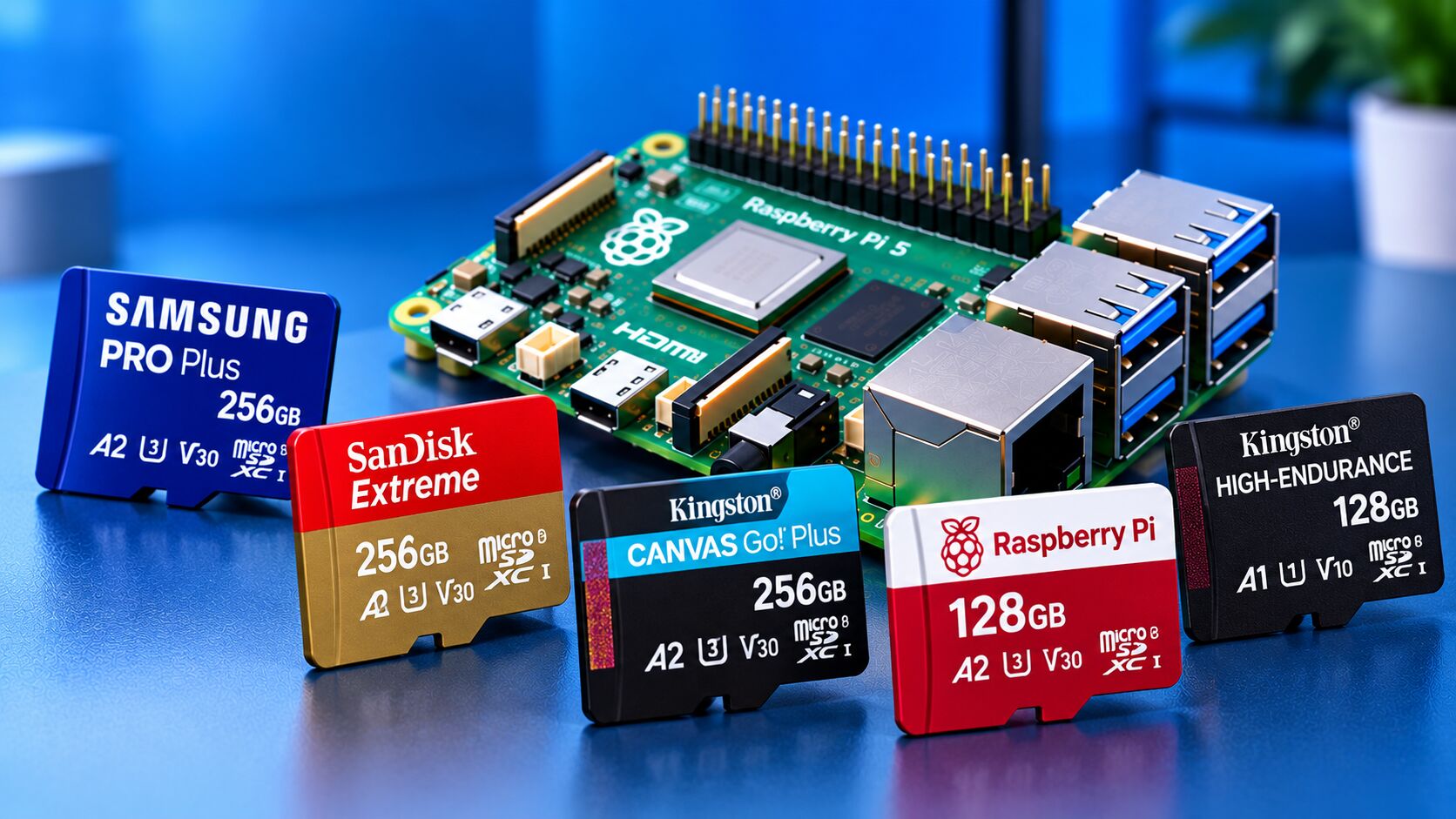
Best microSD Cards at a Glance
| microSD Card | Capacity | Speed Class | Best For |
|---|---|---|---|
| Samsung PRO Plus | 128GB–1TB | A2, U3, V30 | Raspberry Pi OS and general SBC use |
| SanDisk Extreme | Up to 1TB | A2, U3, V30 | Raspberry Pi, gaming and demanding projects |
| Kingston Canvas Go! Plus | 64GB–1TB | A2, U3, V30 | Fast general-purpose storage |
| Raspberry Pi Official SD Card | 32GB–128GB | A2, U3, V30 | Raspberry Pi OS and maximum compatibility |
| Kingston High-Endurance | 32GB–256GB | A1, U1, V10 | Write-intensive applications |
The exact performance you get depends on the SBC, card reader, operating system, filesystem and workload. Manufacturer sequential-speed figures should not be interpreted as guaranteed Raspberry Pi performance.
1. Samsung PRO Plus microSD
The Samsung PRO Plus is one of the strongest choices for a Raspberry Pi operating system or general-purpose SBC storage.
Samsung lists the current PRO Plus microSD with capacities from 128GB to 1TB, UHS-I interface, Class 10, U3, V30 and A2 ratings. Samsung specifies sequential speeds of up to 180 MB/s read and 130 MB/s write, although these figures depend on the host device and testing conditions.
Key specifications
- Capacity: 128GB, 256GB, 512GB, 1TB
- Interface: UHS-I
- Speed class: Class 10
- UHS speed: U3
- Video speed: V30
- Application class: A2
- Read speed: up to 180 MB/s
- Write speed: up to 130 MB/s
- Limited warranty: 10 years
Samsung also specifies protection against water, temperature, X-rays, magnets, drops and wear, with up to 10,000 insertion/removal cycles.
Why it works well for Raspberry Pi
An A2-rated card is particularly interesting for operating-system workloads because A2 specifies minimum random-performance requirements of 4,000 read IOPS and 2,000 write IOPS, although actual performance depends on the host.
For a Raspberry Pi running:
- Raspberry Pi OS
- Docker
- Portainer
- Pi-hole
- Tailscale
- Home Assistant
- Development tools
- Lightweight home-server applications
the PRO Plus provides a strong combination of capacity and performance.
Best capacity for most Raspberry Pi users: 128GB or 256GB.
2. SanDisk Extreme microSD
The SanDisk Extreme microSD is another popular high-performance option for Raspberry Pi and SBC applications.
SanDisk’s current Extreme line includes A2 and U3/V30 versions and is available in capacities up to 1TB. SanDisk specifies read speeds of up to 190 MB/s on the current product page, depending on capacity and compatible equipment.
The card is designed for applications including 4K video and devices that require fast application performance.
Key features
- Up to 1TB capacity
- UHS-I
- U3
- V30
- A2
- Up to 190 MB/s read on supported configurations
- Designed for demanding workloads
- Water, shock, temperature and X-ray resistance
SanDisk notes that the maximum advertised speeds require compatible hardware and that actual performance varies with the host device.
Why choose it for an SBC?
The SanDisk Extreme is a good fit if you use your microSD card for more than simply booting an operating system.
For example:
- Raspberry Pi gaming
- Raspberry Pi desktop
- Docker
- Media applications
- Development
- RetroPie-type projects
- Home automation
- SBC experimentation
It is also a useful option if you want one microSD card that can be moved between different devices.
3. Kingston Canvas Go! Plus
The Kingston Canvas Go! Plus is another A2/U3/V30 microSD card worth considering.
Kingston lists capacities from 64GB through 1TB. Depending on capacity, the company specifies up to 200 MB/s read and up to 100 MB/s write for 64GB–128GB models, while 256GB–1TB models are listed at up to 200 MB/s read and 160 MB/s write.
Specifications
- Capacity: 64GB–1TB
- Interface: UHS-I
- Class: Class 10
- UHS: U3
- Video: V30
- Application: A2
- Read: up to 200 MB/s
- Write: up to 160 MB/s on 256GB–1TB models
- Operating temperature: -25°C to 85°C
Kingston also describes the card as resistant to water, temperature and X-rays.
Raspberry Pi applications
The Canvas Go! Plus can be used for:
- Raspberry Pi OS
- Raspberry Pi desktop
- Docker
- Home servers
- Retro gaming
- Development
- SBC experimentation
Its A2 rating makes it more interesting for operating-system and application workloads than a basic low-speed microSD card.
4. Raspberry Pi Official microSD Card
If you want a microSD card specifically designed and tested for Raspberry Pi computers, the official Raspberry Pi SD Card is worth considering.
Raspberry Pi currently lists 32GB, 64GB and 128GB capacities. The cards are Class 10, U3, V30 and A2, and support DDR50 and SDR104 bus speeds as well as the command queueing extension.
Raspberry Pi reports the following random 4K performance:
| Raspberry Pi | Random Read | Random Write |
|---|---|---|
| Raspberry Pi 4 | 3,200 IOPS | 1,200 IOPS |
| Raspberry Pi 5 | 5,000 IOPS | 2,000 IOPS |
These figures are particularly relevant because operating systems perform many small reads and writes rather than simply transferring large sequential files.
Why choose the official card?
The biggest advantage is that Raspberry Pi has specifically tested the card for its computers.
The official card can also come pre-programmed with Raspberry Pi OS, depending on the product configuration.
Recommended for
- Raspberry Pi OS
- Raspberry Pi beginners
- Raspberry Pi desktop
- Educational projects
- General-purpose Raspberry Pi systems
If you want a straightforward Raspberry Pi-specific solution, this is an option worth considering.
5. Kingston High-Endurance microSD
Not every Raspberry Pi workload needs maximum sequential speed.
For applications that continuously write data, endurance can become more important.
Kingston’s High-Endurance microSD is designed for applications such as dashcams, security cameras and body cameras. The current line is available from 32GB to 256GB and uses UHS-I, U1 and V10 ratings.
Kingston specifies:
- 32GB–64GB: up to 95 MB/s read, 30 MB/s write
- 128GB–256GB: up to 95 MB/s read, 45 MB/s write
- A1
- UHS-I
- U1
- V10
Is it good for Raspberry Pi?
It depends on the workload.
For a normal Raspberry Pi operating system, I would generally look first at an A2/U3/V30 card.
But a high-endurance card can make sense for workloads where the microSD card is exposed to frequent writes.
Examples include:
- Continuous logging
- Security-camera projects
- Dashcam-style applications
- Data logging
- Certain monitoring systems
For a serious server that constantly writes data, however, an SSD is generally a better storage architecture than relying on microSD.
What Do A1 and A2 Mean?
One of the most confusing microSD specifications is the Application Performance Class.
You will usually see:
- A1
- A2
A2 has higher minimum random I/O requirements than A1.
The A2 specification requires:
- Random read: 4,000 IOPS
- Random write: 2,000 IOPS
- Sustained sequential write: 10 MB/s
This matters because an operating system constantly accesses small files.
For example, starting an application may involve reading many relatively small files rather than transferring one huge file.
Therefore, looking only at a card’s advertised sequential read speed can be misleading.
For Raspberry Pi
For a new Raspberry Pi system, an A2-rated card is a sensible target when the host supports the relevant performance features.
What Does U3 Mean?
The U3 designation is part of the UHS Speed Class system.
U3 indicates a minimum sustained sequential write speed of 30 MB/s.
That is important for applications such as video recording, but it doesn’t tell you everything about operating-system performance.
For a Raspberry Pi, I would look at the combination:
A2 + U3 + V30
rather than focusing on any single specification.
What Does V30 Mean?
V30 is the Video Speed Class designation.
A V30 card guarantees a minimum sustained sequential write speed of 30 MB/s under the applicable specification.
This was primarily designed around video recording workloads.
For Raspberry Pi users, V30 is not necessarily required for every project, but it is common on quality high-performance microSD cards.
Samsung PRO Plus, SanDisk Extreme and Kingston Canvas Go! Plus all carry V30 classifications.
Is 128GB Enough for Raspberry Pi?
For most Raspberry Pi projects, 128GB is a very useful capacity.
It gives you considerably more room than a 32GB or 64GB card without moving into unnecessarily large capacities.
32GB
Good for:
- Basic Raspberry Pi OS
- Simple projects
- GPIO experiments
- Lightweight services
64GB
Good for:
- Raspberry Pi OS
- Docker
- Development
- Home Assistant
- Pi-hole
- Tailscale
- Small servers
128GB
Good for:
- Docker servers
- Media applications
- Development
- Retro gaming
- Multiple applications
- Larger Raspberry Pi projects
256GB
Useful for:
- Large application installations
- Retro gaming libraries
- Development environments
- Larger datasets
- More demanding SBC projects
512GB–1TB
These capacities can be useful for large media or data collections, but once you’re using hundreds of gigabytes for a server, an SSD often becomes a more appropriate choice.
128GB vs 256GB microSD
For many Raspberry Pi users, the decision comes down to these two capacities.
Choose 128GB if:
- You are running Raspberry Pi OS
- You are building a small home server
- You use Docker
- You want enough space for several applications
- You want to keep costs reasonable
Choose 256GB if:
- You store more local data
- You have a larger gaming library
- You run multiple services
- You want more room for experimentation
- You don’t want to upgrade storage soon
For a typical Raspberry Pi server, I would rather have a high-quality 128GB A2 card than a cheap 512GB card with poor random-write performance.
How Much Storage Does Raspberry Pi OS Need?
The operating system itself doesn’t require hundreds of gigabytes.
The problem is everything you add afterward.
For example, a Raspberry Pi running only:
- Raspberry Pi OS
- SSH
- Pi-hole
may need relatively little storage.
But adding:
- Docker
- Portainer
- Nextcloud
- Jellyfin
- databases
- container images
- logs
- media
- backups
can quickly increase storage requirements.
This is why storage capacity should be selected according to the entire workload rather than the operating system alone.
microSD vs USB SSD on Raspberry Pi
A microSD card is convenient because Raspberry Pi computers are designed to boot from it.
However, an SSD can be a much better choice for a server.
If you’re running:
- Docker
- Nextcloud
- databases
- Jellyfin
- file servers
- large downloads
- frequently changing data
an SSD can provide a better storage solution.
We’ve also covered this in our guide to the Best USB SSDs for Raspberry Pi and Single Board Computers.
For Raspberry Pi 5 systems, NVMe storage is another option. See our guide to the Best NVMe HATs for Raspberry Pi 5.
Can You Run Docker From a microSD Card?
Yes, but storage architecture matters.
Docker generates a considerable amount of disk activity through:
- Container layers
- Logs
- Volumes
- Databases
- Package installations
- Temporary files
A Raspberry Pi running a few lightweight containers can work perfectly well from a good microSD card.
For a larger Docker server, however, moving Docker’s data to an SSD is usually more appropriate.
Our Docker Containers for Raspberry Pi guide covers the subject in more detail.
Best microSD Capacity for Different Raspberry Pi Projects
| Project | Recommended Capacity |
|---|---|
| Raspberry Pi OS desktop | 64GB–128GB |
| Basic GPIO projects | 32GB–64GB |
| Pi-hole | 32GB–64GB |
| Tailscale | 32GB–64GB |
| Docker | 64GB–128GB |
| Portainer | 64GB–128GB |
| Home Assistant | 64GB–128GB |
| Retro gaming | 128GB–256GB+ |
| Nextcloud | 128GB+ |
| Jellyfin server | 128GB+ |
| Large media server | SSD recommended |
| Database server | SSD recommended |
| Heavy Docker server | SSD recommended |
These are practical starting points rather than hard requirements.
How to Choose a microSD Card for Raspberry Pi
When comparing cards, look at these specifications.
1. Application Performance Class
Prefer A2 for a new Raspberry Pi installation when supported.
2. UHS Speed Class
Look for U3 on a performance-oriented card.
3. Video Speed Class
V30 is a useful indicator of sustained write capability.
4. Random performance
This is particularly important for operating systems.
Don’t select a card solely because it advertises a high sequential read speed.
5. Capacity
For most users, 64GB or 128GB is enough.
Choose 256GB or more when you have a specific reason.
6. Endurance
If the card will receive continuous writes, investigate endurance-oriented models.
7. Authenticity
Buy from a reputable retailer.
Counterfeit flash cards are a particularly serious problem because a card can report a much larger capacity than its actual flash memory.
How to Test a microSD Card
If you’re using a microSD card for an important Raspberry Pi project, it is worth testing it before trusting it with data.
On Linux, you can examine the device with:
lsblkYou can check filesystem information with:
lsblk -fFor a new card, tools such as F3 can be used to test whether the advertised capacity is genuine.
Install F3 on Debian/Ubuntu with:
sudo apt update
sudo apt install f3
Then test a mounted card with:
f3write /path/to/test-directory
f3read /path/to/test-directory
Be careful to select the correct filesystem path.
Testing is especially useful when purchasing unusually cheap high-capacity microSD cards.
How to Format a microSD Card for Raspberry Pi
For a Raspberry Pi installation, the easiest method is normally Raspberry Pi Imager.
The application can:
- Select Raspberry Pi OS
- Select the microSD card
- Configure operating-system options
- Write the image
- Verify the installation
This is generally preferable to manually extracting an image and configuring everything yourself.
If you’re using another operating system, follow the distribution’s recommended imaging method.
Don’t Use a Cheap microSD Card for Everything
One of the biggest mistakes when building an SBC is spending money on a powerful board and then using the cheapest possible storage.
For example, a Raspberry Pi 5 can be paired with fast storage, but the microSD card remains an important part of the system.
A poor-quality card can cause:
- Slow boot times
- Application delays
- Filesystem corruption
- Unexpected read/write errors
- Shorter service life
- Difficult-to-diagnose system instability
The storage device doesn’t need to be the most expensive component, but reliability matters.
microSD Cards and Raspberry Pi Backups
Even a high-quality microSD card can fail.
Flash storage is not a substitute for backups.
If your Raspberry Pi contains important configuration or data, consider backing it up to:
- USB SSD
- NAS
- Another computer
- Cloud storage
- External hard drive
For Docker systems, remember that backing up container images alone isn’t enough. Important data is normally stored in Docker volumes or bind mounts.
When Should You Use an SSD Instead?
A microSD card is excellent for:
- Raspberry Pi OS
- Small projects
- Learning Linux
- GPIO projects
- Lightweight services
- Portable Raspberry Pi installations
An SSD becomes more attractive when you have:
- Large databases
- Heavy Docker workloads
- Nextcloud
- Large media libraries
- Frequent writes
- Virtual machines
- Large development environments
- Persistent server workloads
For those applications, consider moving your primary storage to USB SSD or NVMe.
microSD Card Speed: What Actually Matters?
Consider a hypothetical card advertising:
200 MB/s read
That doesn’t mean your Raspberry Pi will boot or launch applications at 200 MB/s.
The actual performance is limited by:
- Raspberry Pi’s SD interface
- Card controller
- Card firmware
- Random I/O performance
- Filesystem
- Operating system
- Workload
- Temperature
- Card reader
Raspberry Pi’s own documentation specifically notes that slow bus speeds and lack of command queueing can reduce the performance of even a powerful Raspberry Pi.
This is why specifications such as A2 and actual random I/O performance can matter more than an impressive sequential read number.
Which microSD Card Should You Buy?
For a Raspberry Pi or SBC, these are the main options to consider:
Samsung PRO Plus
A strong choice for a general-purpose Raspberry Pi installation, with A2, U3 and V30 ratings and capacities up to 1TB. Samsung lists up to 180 MB/s read and 130 MB/s write under compatible conditions.
SanDisk Extreme
A high-performance option with A2, U3 and V30 variants, suitable for Raspberry Pi projects, gaming and other demanding applications.
Kingston Canvas Go! Plus
A flexible option with 64GB–1TB capacities and A2/U3/V30 specifications. Kingston lists up to 200 MB/s read and, depending on capacity, up to 160 MB/s write.
Raspberry Pi Official SD Card
A Raspberry Pi-specific option with A2, U3 and V30 ratings, SDR104/DDR50 support and command queueing. Raspberry Pi provides measured random I/O figures for its own cards on Raspberry Pi 4 and 5.
Kingston High-Endurance
An option to investigate when continuous writing is more important than maximum application performance. Kingston positions this series for dashcams, security cameras and similar write-intensive workloads.
Frequently Asked Questions
Is A2 better than A1 for Raspberry Pi?
A2 has higher minimum random I/O requirements than A1, making it attractive for operating-system and application workloads. Actual performance still depends on the host device.
Is 128GB enough for Raspberry Pi?
Yes. 128GB is enough for many Raspberry Pi operating systems, Docker projects, development environments and home-server applications.
Is 256GB better than 128GB?
It provides more storage, but capacity alone does not make a card faster. A high-quality 128GB card can be preferable to a low-quality 256GB card.
Does Raspberry Pi 5 need a V30 card?
Not necessarily. V30 is primarily a video-speed classification. For Raspberry Pi operating systems, A2 and actual random I/O performance can be more relevant.
Can Raspberry Pi boot from a microSD card?
Yes. Raspberry Pi computers support booting from microSD, and Raspberry Pi OS is commonly installed this way.
Can I run Docker from microSD?
Yes. Lightweight Docker installations can run from microSD, but SSD storage becomes preferable for heavier workloads and frequent writes.
How long does a Raspberry Pi microSD card last?
There isn’t one fixed lifespan. It depends heavily on the card, workload, write volume, temperature and other conditions.
Should I use a 1TB microSD card?
Only if you actually need that much removable flash storage. For a large Raspberry Pi server, an SSD is often a more appropriate solution.
Final Thoughts
The best microSD card for a Raspberry Pi isn’t necessarily the one with the highest advertised sequential speed.
For most new Raspberry Pi projects, look for a reputable card with:
- A2
- U3
- V30
- Good random I/O performance
- Appropriate capacity
- A reputable manufacturer
The Samsung PRO Plus, SanDisk Extreme, Kingston Canvas Go! Plus, and official Raspberry Pi SD Card all fit well into this category, while a high-endurance card makes more sense for workloads dominated by continuous writes.
For a typical Raspberry Pi 5, 128GB is a practical starting point. If you’re building a larger home server, Docker host, Nextcloud installation or media server, consider using the microSD card for the operating system and moving application data to an SSD or NVMe drive.
Suggested links: