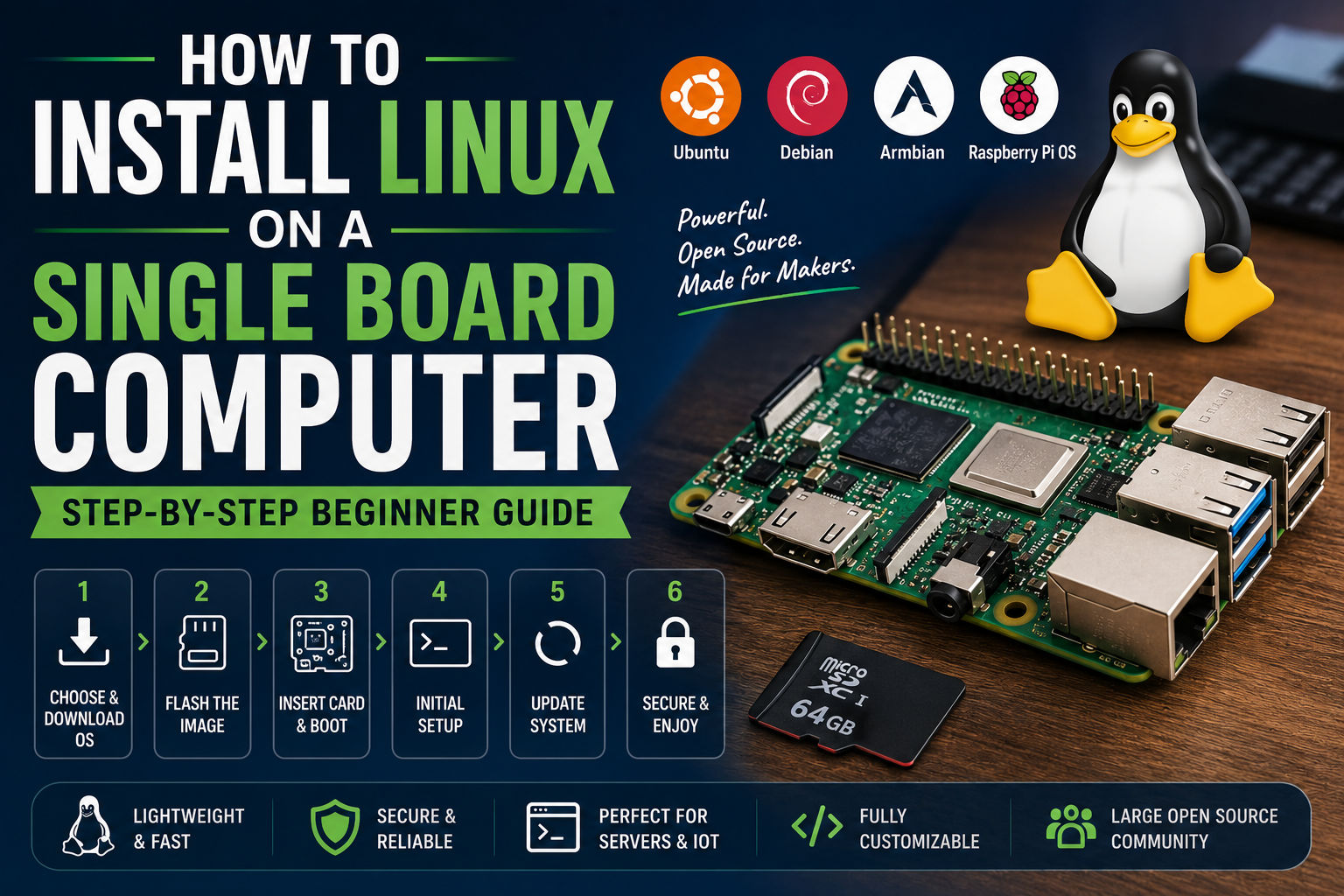
Installing Linux on a single board computer (SBC) is one of the first steps toward building a home server, media center, robotics platform, IoT device, or software development environment. Whether you’re using a Raspberry Pi, Orange Pi, ROCK Pi, ODROID, or another SBC, the installation process is similar across most devices.
In this guide, you’ll learn how to choose the right Linux distribution, prepare your storage media, flash the operating system, complete the initial setup, and troubleshoot common installation issues.
Why Install Linux on an SBC?
Linux is the preferred operating system for single board computers because it is lightweight, stable, secure, and highly customizable. Most SBC manufacturers officially support Linux distributions, and the open-source community provides thousands of tutorials, applications, and development tools.
Benefits include:
- Free and open source
- Excellent performance on low-power hardware
- Large software ecosystem
- Perfect for servers and embedded systems
- Strong community support
- Regular security updates
What You’ll Need
Before getting started, gather the following:
- Your single board computer
- A reliable power supply
- A microSD card (32GB or larger recommended) or NVMe SSD/eMMC if supported
- A computer running Windows, macOS, or Linux
- A card reader
- Internet connection
- HDMI monitor (optional for first setup)
- USB keyboard and mouse (optional)
Step 1: Choose a Linux Distribution
Different projects benefit from different Linux distributions.
Ubuntu
Best for:
- Beginners
- Developers
- Servers
- Docker
- AI projects
Pros:
- Huge community
- Frequent updates
- Excellent documentation
Debian
Best for:
- Stability
- Home servers
- Long-term projects
Pros:
- Lightweight
- Reliable
- Huge software repository
Armbian
Best for:
- Orange Pi
- ROCK Pi
- NanoPi
- Banana Pi
Pros:
- Optimized for ARM hardware
- Excellent performance
- Regular updates
Raspberry Pi OS
Best for:
- Raspberry Pi users
- Education
- Beginners
Pros:
- Official support
- Optimized drivers
- Excellent compatibility
Step 2: Download the Operating System
Visit your board manufacturer’s website or the distribution’s download page.
Choose the correct image for your specific SBC model.
Examples include:
- Ubuntu Server
- Ubuntu Desktop
- Debian
- Armbian
- Raspberry Pi OS
Always verify that the image matches your hardware revision.
Step 3: Download Balena Etcher
Balena Etcher is one of the easiest tools for writing Linux images.
Advantages:
- Free
- Cross-platform
- Verifies images automatically
- Beginner friendly
Alternative tools include Raspberry Pi Imager, Rufus (Windows), and dd (Linux).
Step 4: Flash the Image
- Insert your microSD card.
- Open Balena Etcher.
- Select the downloaded Linux image.
- Choose your storage device.
- Click Flash.
- Wait until the process finishes.
Safely eject the card after completion.
Step 5: Insert the Storage Device
Insert the microSD card, eMMC module, or NVMe SSD into your SBC.
Connect:
- HDMI monitor
- Keyboard
- Mouse
- Ethernet cable (recommended)
- Power supply
The board should begin booting automatically.
Step 6: Complete the Initial Setup
Depending on the Linux distribution, you’ll be asked to configure:
- Username
- Password
- Time zone
- Language
- Keyboard layout
- Wi-Fi
Some server images only provide a terminal interface, while desktop editions include a graphical setup wizard.
Step 7: Update Your System
Once connected to the internet, update your packages.
For Debian, Ubuntu, and Armbian:
sudo apt update
sudo apt upgrade -y
Keeping your system updated ensures better security, bug fixes, and access to the latest software.
Step 8: Install Essential Software
Common packages include:
sudo apt install git curl wget htop vim net-tools unzipDepending on your project, you may also want:
- Docker
- Python
- Node.js
- OpenSSH Server
- Samba
- Nginx
- Apache
- Home Assistant
Step 9: Enable SSH
SSH allows you to manage your SBC remotely.
Ubuntu and Debian:
sudo systemctl enable ssh
sudo systemctl start ssh
Find the device’s IP address:
ip addrConnect from another computer:
ssh username@your-ip-addressStep 10: Secure Your Installation
Before deploying your SBC:
- Change the default password
- Install security updates
- Enable the firewall
- Disable unused services
- Use SSH keys instead of passwords
- Create regular backups
For Ubuntu:
sudo ufw enableTroubleshooting Common Problems
The board won’t boot
Possible causes:
- Incorrect image
- Corrupted download
- Poor-quality SD card
- Insufficient power supply
No display output
Check:
- HDMI cable
- Monitor input
- Power supply
- Correct operating system image
Wi-Fi isn’t working
Possible reasons:
- Unsupported adapter
- Missing firmware
- Wrong Linux image
Updating the system often resolves driver issues.
SD card errors
Symptoms include:
- Random crashes
- Read-only filesystem
- Boot failures
Solution:
Replace the SD card with a high-quality model from a reputable manufacturer or use an NVMe SSD if your board supports one.
Which Linux Distribution Should You Choose?
| Use Case | Recommended Distribution |
|---|---|
| Beginners | Raspberry Pi OS |
| General desktop | Ubuntu Desktop |
| Home server | Ubuntu Server |
| Docker | Ubuntu Server |
| NAS | Debian |
| Orange Pi | Armbian |
| ROCK Pi | Armbian |
| Development | Ubuntu |
| IoT | Debian |
| Lightweight systems | Armbian |
Frequently Asked Questions
Can every single board computer run Linux?
Most modern SBCs support Linux, although the available distributions and hardware support vary by manufacturer and model. Always check the official documentation for your specific board.
Is Linux better than Android for an SBC?
For servers, programming, automation, networking, and development, Linux is generally the better choice due to its stability, flexibility, and extensive software ecosystem.
Should I install Linux on an SD card or SSD?
If your SBC supports NVMe or eMMC storage, those options offer much faster performance and greater reliability than microSD cards. For light projects or getting started, a quality microSD card is usually sufficient.
Which Linux distribution is easiest for beginners?
Raspberry Pi OS is the simplest option for Raspberry Pi boards, while Ubuntu is an excellent choice for many other SBCs thanks to its user-friendly experience and large community.
Final Thoughts
Installing Linux on a single board computer is a straightforward process that unlocks the full potential of your hardware. By choosing the right distribution, using reliable storage, and keeping your system updated, you can build everything from a compact web server to an AI development platform or a smart home controller.
Whether you’re just starting out or deploying multiple SBCs in a home lab, Linux provides the flexibility, performance, and stability needed for a wide range of projects.
As your experience grows, you can explore advanced topics such as Docker containers, Kubernetes, virtualization, network storage, home automation, and edge AI—all powered by your single board computer.